
How to Fix DNS Issues Using Chrome’s net-internals Tool (Step-by-Step Guide)
Have you ever tried to open a website in Chrome only to find it won’t load — while it works fine on another browser or device? This common frustration is often a DNS cache issue, and Google Chrome provides a powerful, built-in tool to fix it.
In this updated guide, you’ll learn exactly how to use the modern method (via Developer Tools) to resolve DNS-related problems, as the old net-internals page is now deprecated for most users.
What Is the Chrome net-internals DNS Tool?
chrome://net-internals/#dns is the traditional address for a hidden diagnostic page inside Google Chrome that lets you view and clear the browser’s DNS cache.
Note: For most modern users, the function is now accessed via Developer Tools or net-export, as detailed below.
When you visit a website, Chrome stores its DNS lookup results so it can load faster next time. However, if those cached records become outdated or corrupted, Chrome may fail to connect to the site — even though it’s working elsewhere.
The host resolver cache clear allows you to:
- View DNS host resolver cache entries (using net-export)
- Clear or reset Chrome’s internal DNS cache
- Troubleshoot website connectivity and redirect issues
Why Do DNS Issues Happen?
A DNS (Domain Name System) translates website names (like example.com) into IP addresses.
If Chrome has an old or incorrect IP stored in its cache, you may experience:
- Websites not loading or showing “This site can’t be reached”
- Redirect errors after a domain migration
- Certificate or SSL warnings
- Slow page loads or connection timeouts
When Should You Use Chrome’s DNS Clear Function?
Use this solution if:
- A website works on your phone or another browser but not in Chrome
- You recently changed a site’s DNS or hosting provider
- You’re facing inconsistent or intermittent connection errors
- Clearing cookies or cache didn’t fix the issue
Updated Step-by-Step Guide: How to Clear Chrome’s DNS Host Cache
Follow this modern, reliable method to clear Chrome’s DNS cache and fix most DNS-related problems.
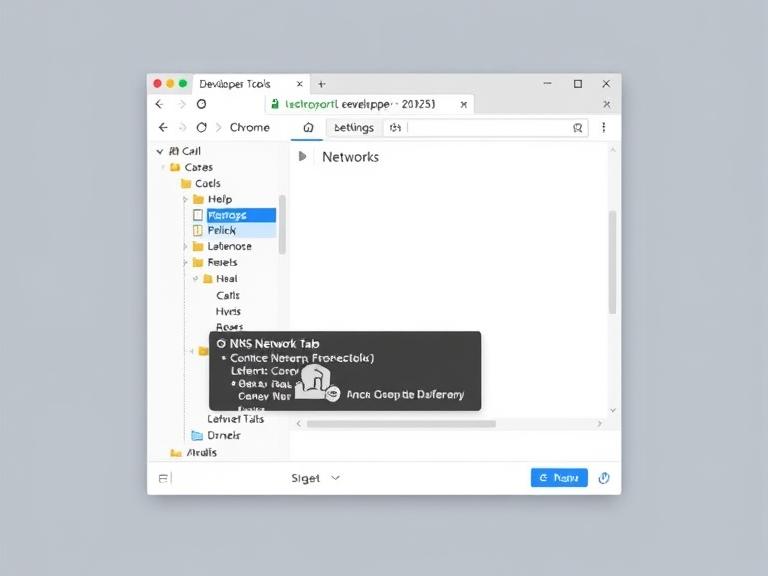
Step 1: Open Chrome Developer Tools
Launch Google Chrome. Open Developer Tools by pressing F12 (Windows/Linux) or Cmd + Option + J (macOS).
Step 2: Navigate to the Network Tab
Click the Network tab within the Developer Tools window.
Step 3: Clear Browser & DNS Cache
Right-click anywhere within the Network panel, then select Clear browser cache.
(In some Chrome versions, this also flushes the DNS cache. If available, click Clear host cache to ensure a full reset.)
Step 4: Restart Chrome (Optional but Recommended)
For best results, close and reopen the browser to refresh all network connections.
If the Legacy net-internals Page Still Works:
If you are running an older version of Chrome, you may still access the legacy tool directly: Type chrome://net-internals/#dns in the address bar and press Enter, then click the Clear host cache button.
Alternative Ways to Flush DNS Cache (System-Level)
If Chrome’s internal DNS clear doesn’t fix the issue, flush your system-level DNS cache too:
Windows:
ipconfig /flushdns
macOS:
sudo dscacheutil -flushcache; sudo killall -HUP mDNSResponder
Linux:
sudo systemd-resolve –flush-caches
Firefox:
Type about:networking#dns → click Clear DNS Cache
Benefits of Clearing DNS Cache
- Resolves connectivity errors (site loading, redirects, and SSL mismatches)
- Refreshes outdated IP records
- Improves browsing speed and reliability
- Helps diagnose network connectivity issues
When Not to Use net-internals
Avoid using the net-internals logging feature unnecessarily, as it can capture sensitive network data. Only use it for troubleshooting or when directed by technical support.
Frequently Asked Questions
Q1: Is it safe to clear Chrome’s DNS cache?
Yes. It only removes temporary DNS data and does not affect browsing history, passwords, or saved data.
Q2: Does it clear my computer’s DNS cache too?
No. The Chrome DNS cache is separate from your operating system’s DNS cache.
Q3: How often should I clear it?
Only when facing connection or website loading issues — it’s not needed regularly.
Final Thoughts
Clearing your Chrome DNS host cache is one of the quickest and safest troubleshooting steps you can take when a website won’t load or keeps redirecting incorrectly. By using the Developer Tools method, you ensure you’re applying the most up-to-date fix available in Chrome.
When combined with flushing your system DNS cache, this simple fix can resolve many common connectivity problems — keeping your browsing smooth, fast, and frustration-free. For More Interesting infgormation related to your quieries visit Quillorbit